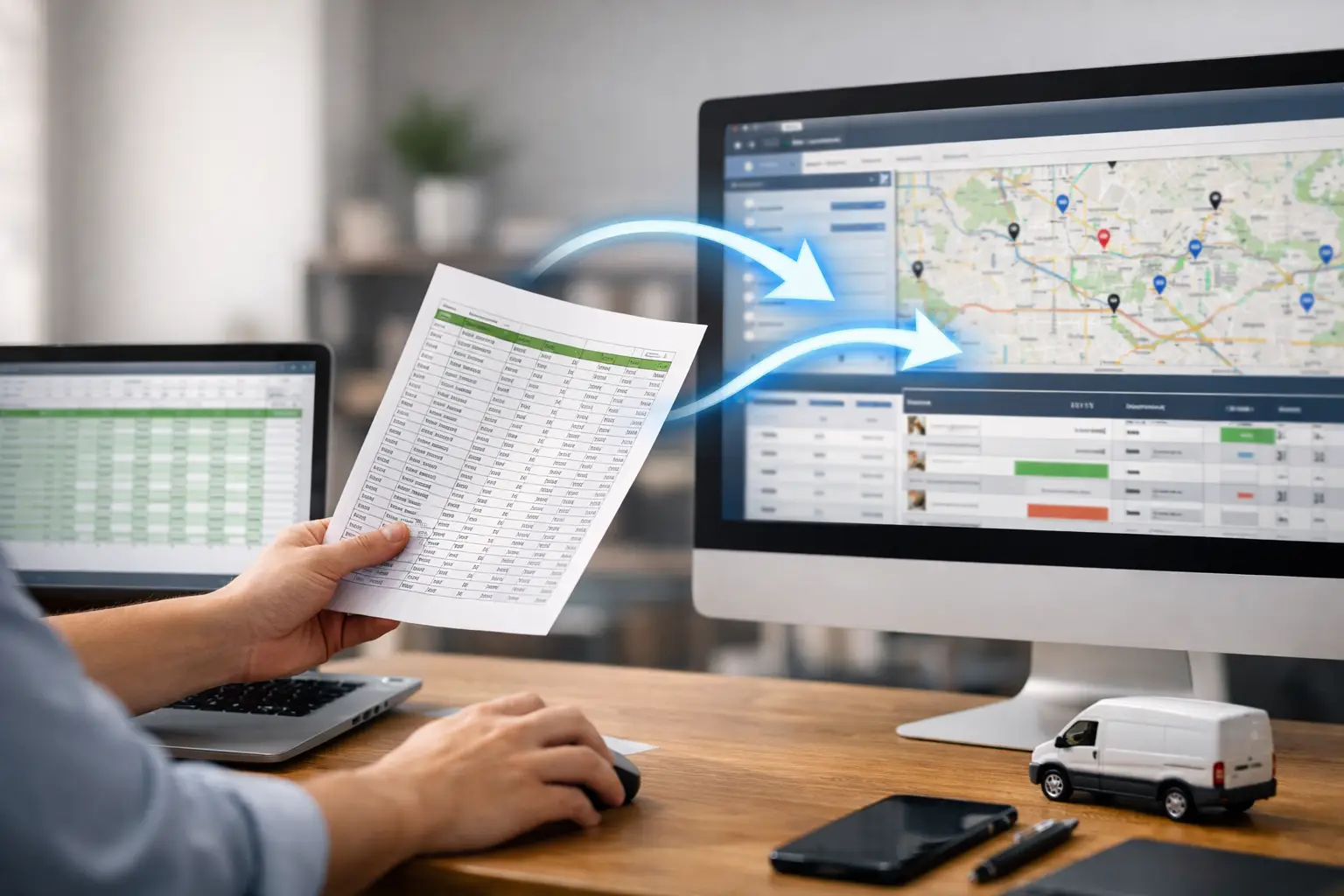
Your spreadsheet probably is not the problem. It likely contains the customers, addresses, appointment windows, and job notes your office needs. The problem starts when someone has to read a row, retype it into a new system, then send the details to a tech by text anyway. Import spreadsheet into dispatch software correctly, and that handoff stops being a daily re-entry project.
For a small plumbing, HVAC, or repair shop, importing should take an afternoon, not a consultant, a data migration package, and three weeks of meetings. But a clean import does require a little discipline. Bad column names, duplicate customers, and vague notes do not become better just because they land in software.
Start with the jobs you need to run now
Do not begin by importing every customer record your shop has collected since 2009. That is how a simple dispatch project turns into a cleanup project nobody has time to finish.
Start with active work: today's jobs, this week's scheduled calls, open work orders, and customers you are likely to serve again soon. Bring over the information your dispatcher needs to put the right job in front of the right truck. Historical records can follow if they are useful and reasonably clean.
For most shops, each spreadsheet row should represent one job card, not one customer. A customer may have called three times this year. Those are three separate jobs with their own dates, notes, assigned technicians, and status.
A practical row might look like this:
`Maria Lopez | 214 Oak St | 555-0182 | Tue 10:00 AM | No cooling upstairs. Gate code 4432. | Ryan`
That is enough to create a usable dispatch card. The office can see the job, the tech gets the details, and the customer record has a place to build over time.
Clean the spreadsheet before you import it
The fastest import is usually preceded by 30 to 60 minutes of cleanup. Not glamorous. Very worthwhile.
Give each column one clear job. Put the customer name in one column, phone number in another, service address in another, and job notes in another. Avoid a single cell that says, `Lopez, 214 Oak, 555-0182, AC issue.` A person can decipher it. Software cannot reliably split it without guessing.
Use a consistent date and time format. `8/14/26 9:00 AM` is clearer than `Friday morning` or `ASAP.` Keep actual timing in the schedule field. Put urgency or access instructions in the notes. Dispatchers need both, but they mean different things.
Phone numbers deserve extra attention because texting depends on them. Remove obvious duplicates, make sure the number belongs to the person who should receive updates, and do not mix office numbers with mobile numbers in the same field. If a customer has multiple contacts, choose the primary contact for the import and add the rest later where your software supports it.
Before you import, look for these common spreadsheet leftovers:
- blank rows sitting between jobs
- merged cells in headers or job details
- multiple jobs packed into one row
- duplicate customer entries with slightly different spellings
- notes containing old, irrelevant instructions
- technician names that do not match the names used in the dispatch system
You do not need a museum-quality database. You need enough consistency that the imported cards make sense when the phones start ringing.
Map columns to the dispatch fields that matter
When you import spreadsheet into dispatch software, field mapping is the part that determines whether the board is useful or just technically populated. Mapping means telling the system that your spreadsheet's `Service Location` column belongs in its address field, or that `Work Needed` belongs in job notes.
For a small service shop, the essential fields are usually customer name, mobile number, service address, scheduled date and time, job notes, and assigned technician. If you have a job number, include it. It helps the office find a call quickly when a customer references an old invoice or a parts order.
Be cautious with fields your old spreadsheet uses only sometimes. A column called `Status` may contain `Booked`, `Called`, `Need parts`, `maybe Thursday`, and `paid.` That is not one status. It is four different kinds of information crammed into one place. Map only clean values to a formal status field. Move the rest into notes or leave it behind.
This is also where smaller, purpose-built dispatch software has an advantage. You should not have to map 40 fields for lead sources, equipment depreciation, marketing campaigns, inventory bins, and payroll codes just to schedule a water-heater call. Those tools may matter to a larger operation. They are not required to get five trucks dispatched before 8:00 AM.
Test a small batch before loading the week
Import five to ten rows first. Then open the resulting job cards as if you were dispatching them.
Can you see the address without opening three screens? Does the phone number look right? Did the appointment time land on the right day? Are job notes readable? Is the assigned tech matched to the correct person?
This test catches the expensive mistakes early. A date format that flips August 9 and September 8 is much easier to fix on ten cards than on 400. So is an address column that accidentally lands in customer notes.
Once the sample looks right, import the active schedule. Keep the original spreadsheet untouched for a few days. It is your backup and your reference while the office gets comfortable with the new board.
Make the import useful in the field
An imported job card only saves time if it changes what happens after the import. Otherwise, the dispatcher still copies the address into a group text and calls the tech to ask whether they saw it.
With CopyThat, the office imports or creates the card, assigns it on the live board, and the tech receives the job by text. The technician does not need an app, a login, or a lesson on how to navigate another piece of software. They reply with simple updates such as `OTW`, `HERE`, and `DONE.` The office sees that movement where the schedule lives.
That workflow works best when job notes are written for the person walking up to the door. Put useful specifics first: `No cooling. Upstairs unit. Customer works from home. Call before arrival.` Do not bury the actual issue below a copied email chain or six months of internal commentary.
Imported notes are also a good chance to set a standard. Use short, factual language. Include gate codes, pets, parking constraints, equipment details, and promised arrival windows when they matter. Skip commentary that does not help the next person perform the work.
Know what an import will not fix
Importing does not fix a schedule with more calls than trucks. It does not tell you whether a two-hour diagnostic belongs before or after a maintenance visit across town. And it will not make a technician respond to dispatch texts if nobody has set the expectation that status replies are part of the job.
The software gives the office one shared place to see the plan and the changes. Your shop still needs simple operating rules: who assigns jobs, what counts as `OTW`, when a tech should call instead of text, and who updates a customer if the schedule slips.
It also depends on what you are trying to replace. If you need estimates, invoicing, inventory, complex maintenance agreements, GPS tracking, and a large back-office system, a lightweight dispatch board may not be enough. Honestly, you may need a broader platform. If the immediate problem is that the schedule lives in a spreadsheet and the real updates disappear into texts, keep the first step focused.
Keep one owner for the imported schedule
After the import, name one person to own the board for the first week. That person does not have to be the only dispatcher. They just need authority to correct duplicate cards, fix naming issues, and make sure completed jobs are actually marked complete.
The goal is not to preserve every habit from the spreadsheet. It is to stop using the spreadsheet as a second dispatch board. Once the office trusts the imported schedule and sees technician updates in one place, the old file becomes a reference instead of the thing everyone is secretly running from.
Start with clean active jobs, test a small batch, and make the job cards useful to the people doing the work. That is enough to turn a spreadsheet from a daily choke point into a practical starting line.